SXA Upgrades – A Trap for Young Players

Sitecore SXA is my favorite way of developing new sites, but there is one tricky trap that can cause you headaches when upgrade time rolls round.
And it’s a simple one; when installed, SXA creates multiple branches in the Content tree where SXA specific items are stored. Generally, they are organised into a Helix construct, so for each part of the tree that SXA creates, there will be three folders:
- Feature – don’t mess with it.
- Foundation – leave it alone.
- Project – All yours buddy
Fine and good until you start extending and developing. SXA retains control over these specific nodes, and when it’s time to upgrade they are over written, which means if your project items are stored in any of these folders, then blammo! They are toast.
This is How We (Don’t) Do It
Here is a good example, a customer recently upgraded their 9.0 instance to 9.3. It was mostly a well-constructed, standard SXA build but with one tiny and crucial detail.
First a little background, SXA has always depending on its own grid systems. In the case of 9.0 this includes Bootstrap 3 but not Bootstrap 4. Of course, developers never want to use an out-of-date grid system, especially when the design agency has mocked the site up using Bootstrap 4.
The solution in this case (and a rather brave move I must say), was to create their own custom grid system, no minor undertaking it must be said considering all the breakpoints and classes that need to be defined.
The grids for SXA are stored and configured under this path:
/sitecore/system/Settings/Feature/Experience Accelerator
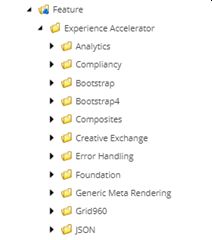
As you might note above, this is from a 9.0 instance and the custom grid that has been created is shown as Bootstrap4, named almost identically to the existing Bootstrap grid above it, enough to make it hard to spot.
So, when an SXA upgrade is performed, this whole node will be overwritten, and the custom grid will go bye bye. The upshot of this is that upgrade will complete successfully, but there will be nothing shown on the page, because the chosen grid does not exist anymore. The simple solution is to store your custom items outside of any folder controlled by SXA – always.
In this case the custom grid should have been moved out of SXA folder and placed under:
/sitecore/system/Settings/Project
and then referenced correctly on this item:
/sitecore/content/[YOUR SITE]/Site/Settings

Areas you should pay attention to, and never create custom items in include:
- /sitecore/layout/Layouts/Feature/Experience Accelerator
- /sitecore/layout/Layouts/Foundation/Experience Accelerator
- /sitecore/layout/Renderings/Feature/Experience Accelerator
- /sitecore/layout/Renderings/Foundation/Experience Accelerator
- /sitecore/system/Settings/Feature/Experience Accelerator
- /sitecore/system/Settings/Foundation/Experience Accelerator
- /sitecore/templates/Feature/Experience Accelerator
- /sitecore/templates/Foundation/Experience Accelerator
And that’s all, a simple rule that all SXA developers to follow to allow for clean SXA upgrades without mysterious disappearing items.


Comments
Post a Comment